Solutions

One Platform. Every Role.

Focus Period looks different depending on who's using it — but it's the same system underneath. See what it does for the people running your school day.

School Leaders
User interface screen titled 'Subjects' with a text input field labeled 'Subject Name' and a disabled 'Save' button. Below is a list of subjects including Student Support Services, Theatre, Art, Physical Education, Bible and Theology, and Athletics, each with edit and delete icons to their right.
Teachers
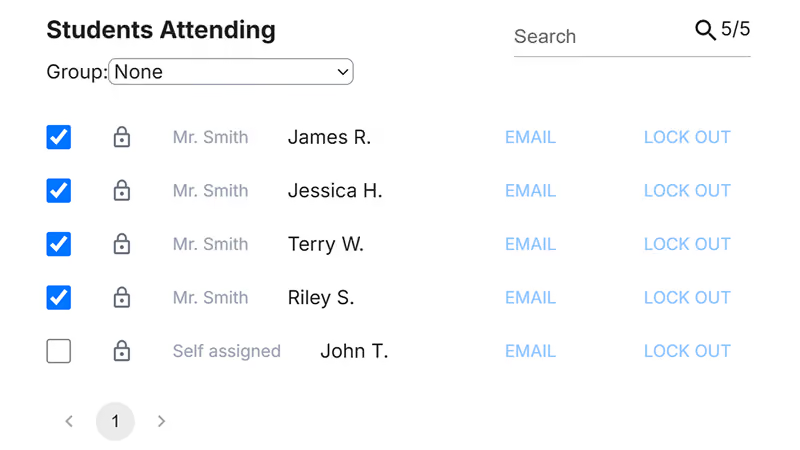
Interface showing a list titled 'Students Attending' with a dropdown for group selection set to None and a search bar. Five students are listed with checkboxes to mark attendance: James R., Jessica H., Terry W., Riley S. are checked and assigned to Mr. Smith; John T. is not checked and marked as Self assigned. Each student has options to email or lock out. Pagination at the bottom shows page 1.
Students
Screenshot of an online session selection interface for Tuesday, Sep 1st, 2026, with filters for subject and teacher and a search bar. Sessions are categorized with color-coded labels: red for Enrichment, green for Intervention, purple for Student Group Meetings, and yellow for College Visits. Four sessions are shown: Math 111 Catch Up with 3 of 10 students (Enrichment, red border), Chemistry Help with 4 of 7 students (Intervention, green border), Coding Practice with 6 of 9 students (Student Group Meetings, purple border), and College Visits with 7 of 12 students (College Visits, yellow border). Each session has a short description and a 'VIEW' link.
School Leaders

See the whole school day, not one classroom at a time.

Administrators get the building-level view: every session running, every student placed, and every attendance record — without asking staff to file a separate report at the end of the week.

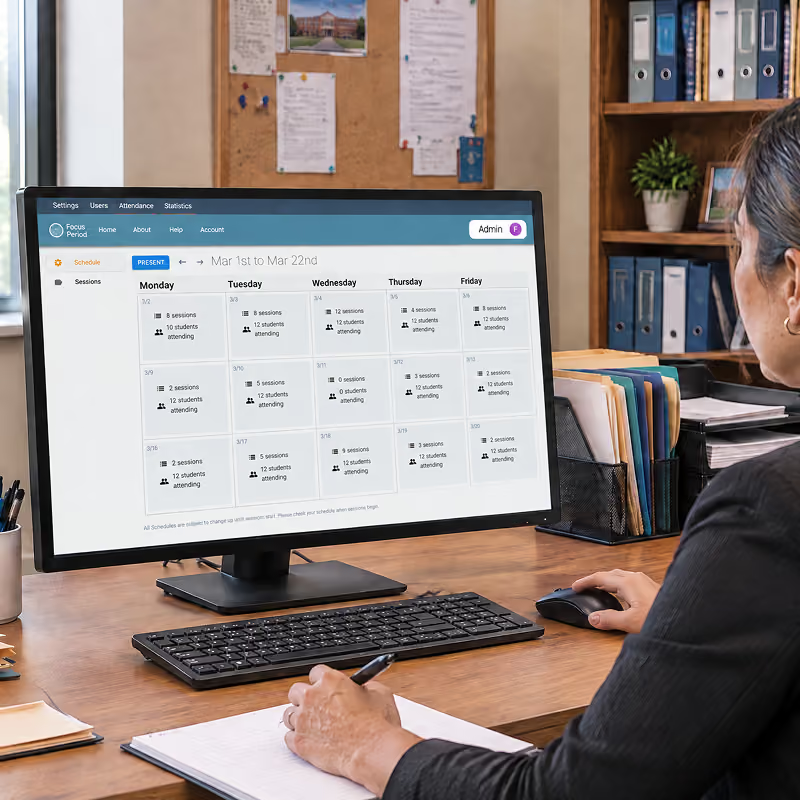
Week and day schedule — sessions running and students attending, per day, across the school.

School-wide reporting — see where every student is, who's being served, and how Focus Period is actually being used.

Placement reporting — who was locked in by a teacher, who chose their own session, and who was placed automatically when they didn't choose in time.

Configured once — subjects, categories, periods, and recurring sessions set at the school level.
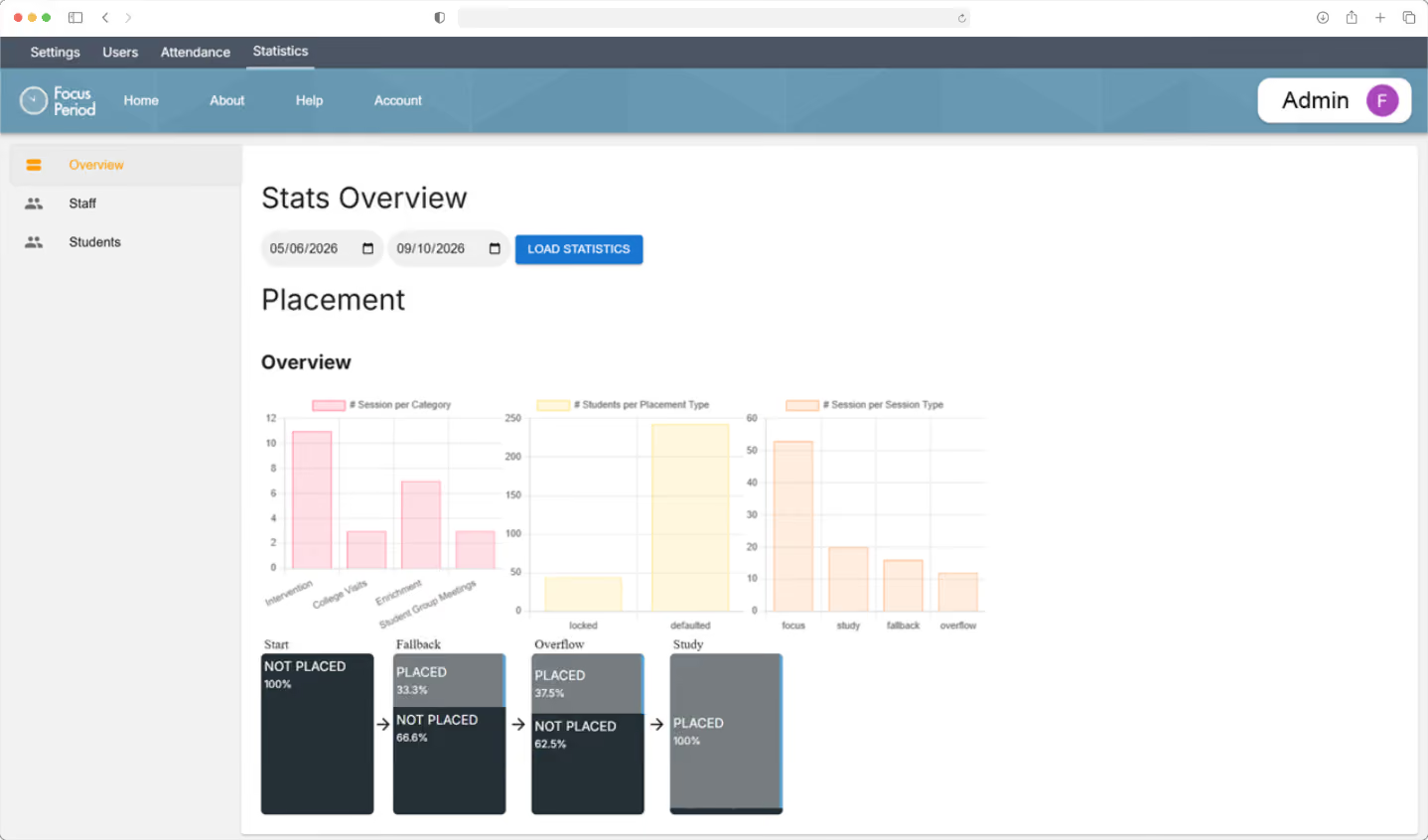
Dashboard screen displaying a Stats Overview for Placement with date selectors from 05/06/2026 to 09/10/2026 and a Load Statistics button, including three bar charts showing sessions per category, students per placement type, and sessions per session type. Below are four flowchart panels labeled Fallback, Overflow, Study, indicating placement status percentages: Not Placed 100%, Placed 33.3%, Not Placed 66.6%, Placed 37.5%, Not Placed 62.5%, and Placed 100%. The webpage header includes navigation links for Settings, Users, Attendance, Statistics, and a user icon labeled Admin. There is a sidebar with links for Overview, Staff, and Students.
Person working at a desk with a computer displaying a weekly schedule view for sessions and student attendance from March 1st to March 22nd, showing daily session counts and student participation details. The desk has a keyboard, mouse, pen, notebook, and file organizers with folders, and there is a corkboard and bookshelf in the background.
Teachers

Build the session, lock in who needs it, take attendance.

Teachers create their own sessions, pull in the students who have to be there, and take attendance on the same screen. Timely and targeted intervention happens easily, and effectively.

Create a session with location, capacity, subject, category, and notes for students to read before selecting.

Lock students in so the students who need help aren't choosing something else that day.

Attendance in a few clicks — mark absent or tardy, everyone else is accounted for automatically.

Cross-roster sessions — plan with another teacher and split the group by what each one is best suited to teach.
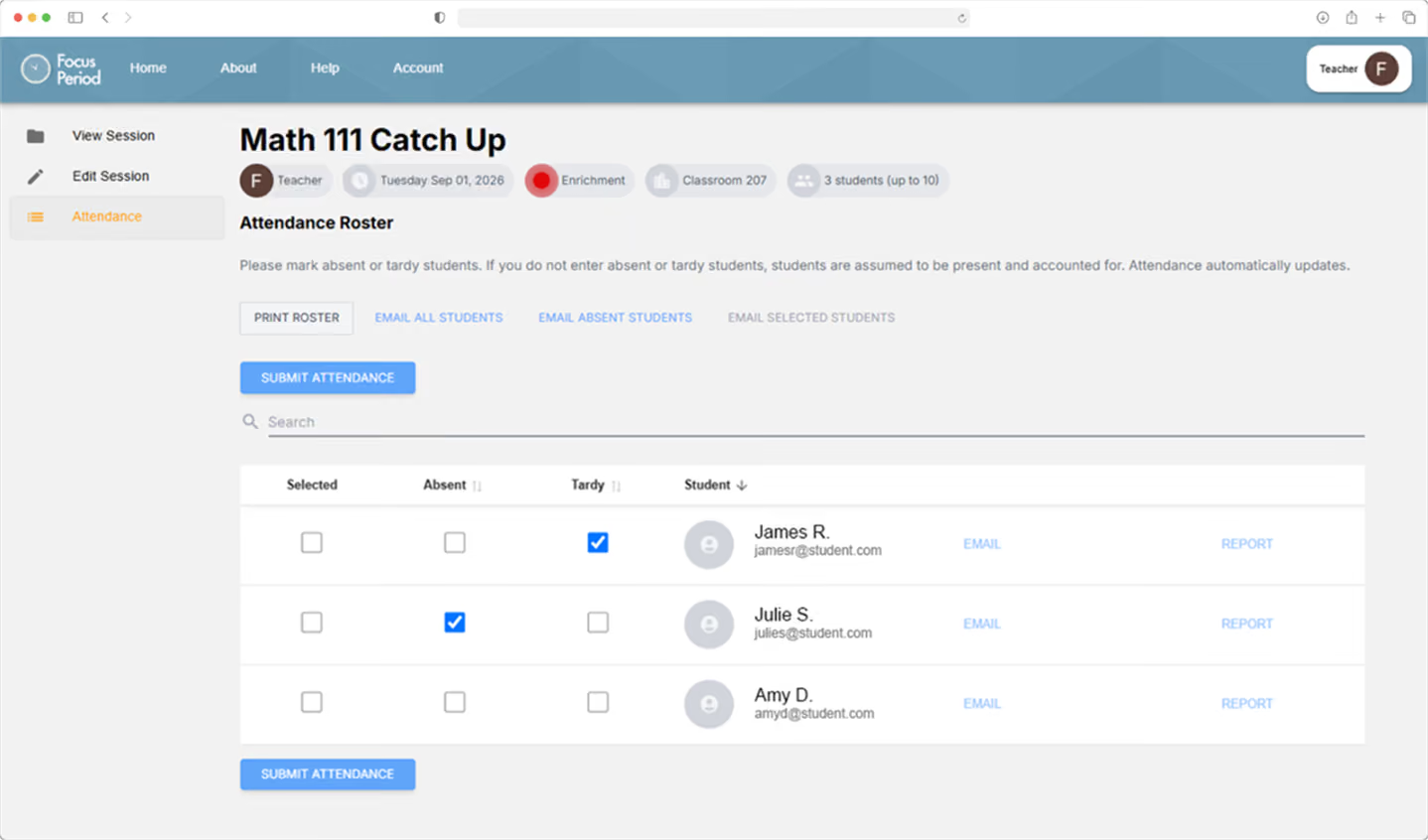
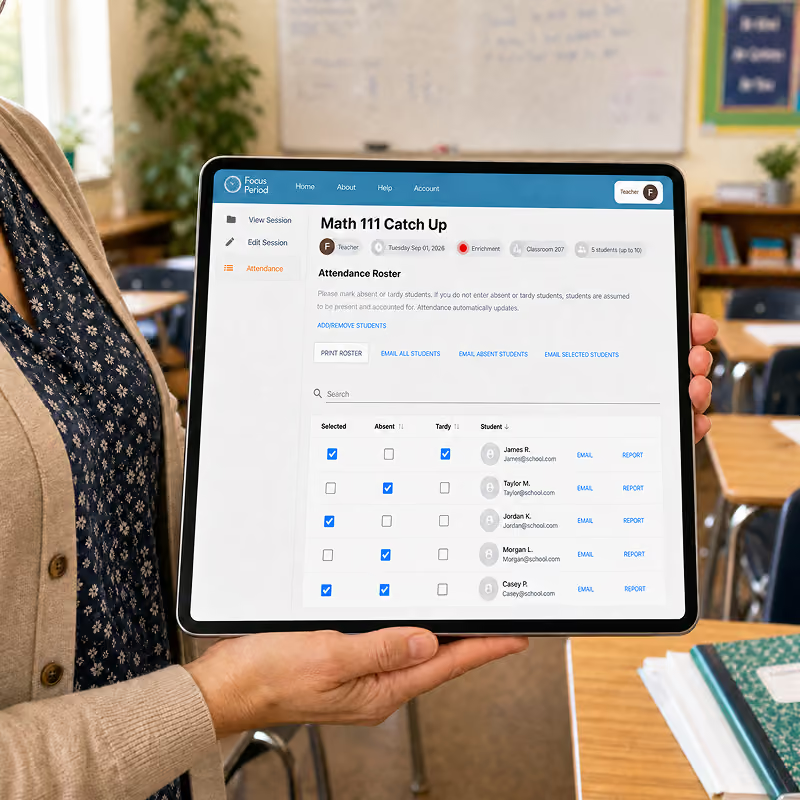
Screenshot of Focus Period attendance page for Math 111 Catch Up class dated Tuesday, Sept 01, 2020, showing attendance roster with options to mark students as absent or tardy. Three students listed: James R. marked tardy, Julie S. marked absent, Amy D. marked present. Buttons for submitting attendance, printing roster, and emailing students are visible. Navigation menu on left with options View Session, Edit Session, and Attendance highlighted. Top menu includes Home, About, Help, Account, and a teacher profile icon labeled 'Teacher F'.
Tablet held by a woman displaying a digital attendance roster for Math 111 Catch Up class, showing student names, email addresses, and checkboxes for attendance status including selected, absent, and tardy.
Students

A schedule they can read and a choice they can make.

Students see their own week, pick the session that fits, and know exactly where they're expected to be. When a teacher has locked them in, the schedule says so, there's nothing to negotiate at the door.

Browse the day's sessions and filter by subject or teacher, with the category color-coded on every card.

Choose what fits — academic catch-up, enrichment, college visits, student group meetings, and more.

See the whole week, with attendance filled in as each day happens.

Never left without a spot — anyone who doesn't choose in time is placed into a session automatically.
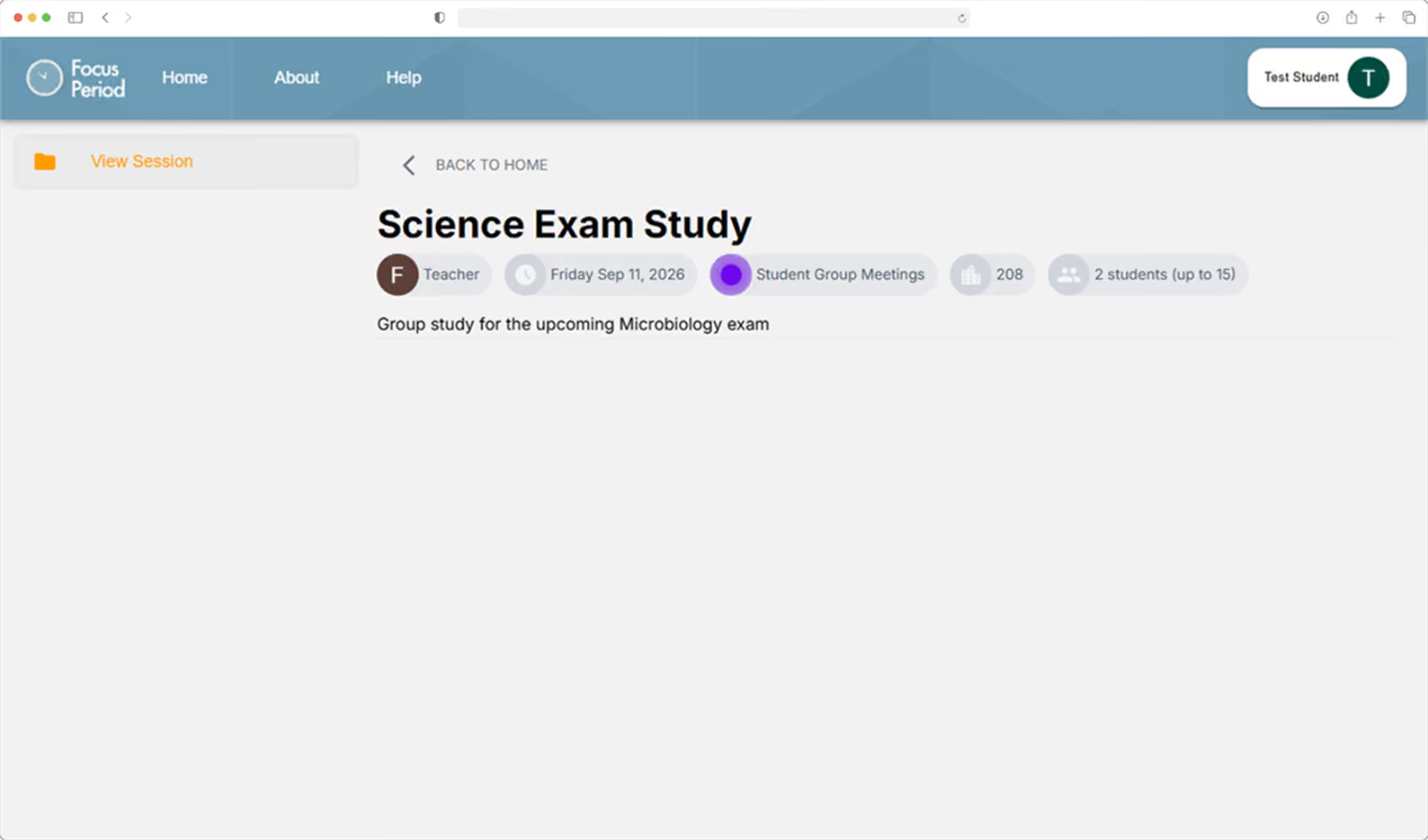
Web interface of Focus Period app showing a Science Exam Study session with details: Teacher, date Friday Sep 11, 2026, Student Group Meetings, 208 views, and 2 students out of 15 enrolled, with description 'Group study for the upcoming Microbiology exam'.
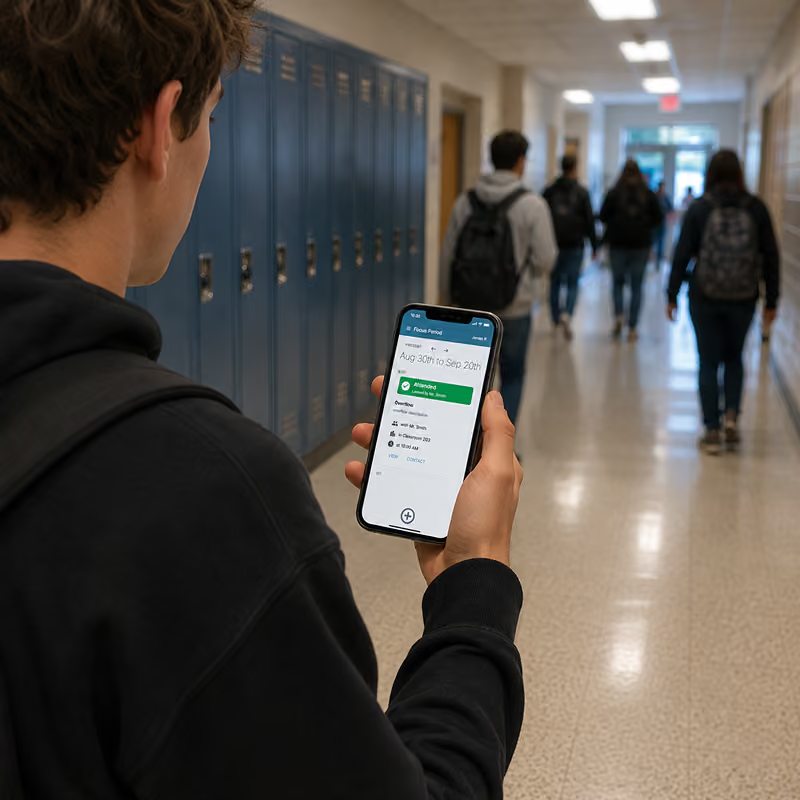
Student standing in a school hallway with blue lockers, holding a smartphone displaying a focus period schedule app showing an attended status and details of a class from Aug 30th to Sep 20th.
Get started

Already Running Something Like This?

Already have WIN time, an advisory period, or a built-in tutoring block? Focus Period doesn't replace it—it gives your school a better way to manage it.